Website Page Not Indexed by Google? Try the URL Inspection Tool
Published a new page but can’t find it in Google Search? Before assuming something is wrong with your SEO, there’s a simple place to start: Google Search Console’s URL Inspection Tool.
Manually searching Google for your page can give you a quick indication of whether it appears in the search results, but it doesn’t tell you much about why a page isn’t showing up.
That’s where URL Inspection becomes useful. The tool lets you check how Google sees a specific URL, including whether the page is indexed, when it was last crawled, which canonical URL Google recognizes, and whether there are crawling or indexing issues.
For website owners and SEO professionals, this makes URL Inspection a practical troubleshooting tool rather than just another report inside Google Search Console.
What Is the URL Inspection Tool?
If you’ve opened Google Search Console (GSC), you’ve probably noticed the search-like field at the top of the dashboard.
That field is the URL Inspection Tool.
Its main purpose is straightforward: enter a URL from your website and Google Search Console will show information about how that URL is currently handled in Google’s search index.
Depending on the URL, you may see details such as:
- Whether the URL is indexed by Google
- The last time Google crawled the page
- The selected or declared canonical URL
- The referring page URL
- Information related to crawling and indexing
- Options for testing the live version of the page
The interesting part is that URL Inspection isn’t only useful for checking an indexing status. You can also use it to investigate potential problems and, when appropriate, request that Google crawl the page again.
You simply enter the URL you want to investigate into the inspection field.
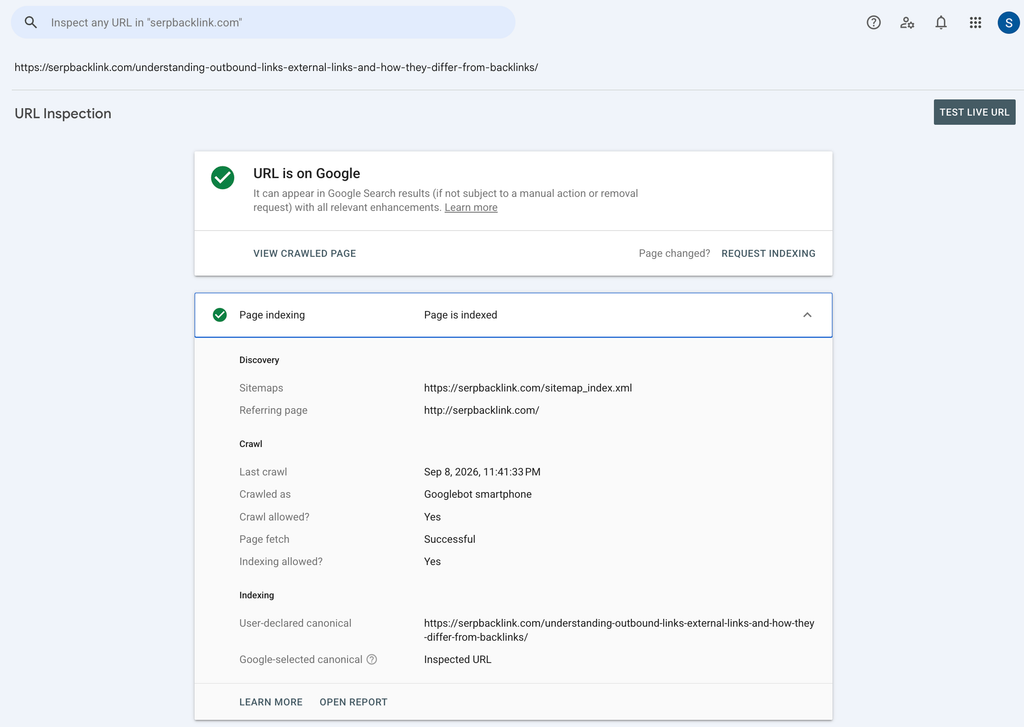
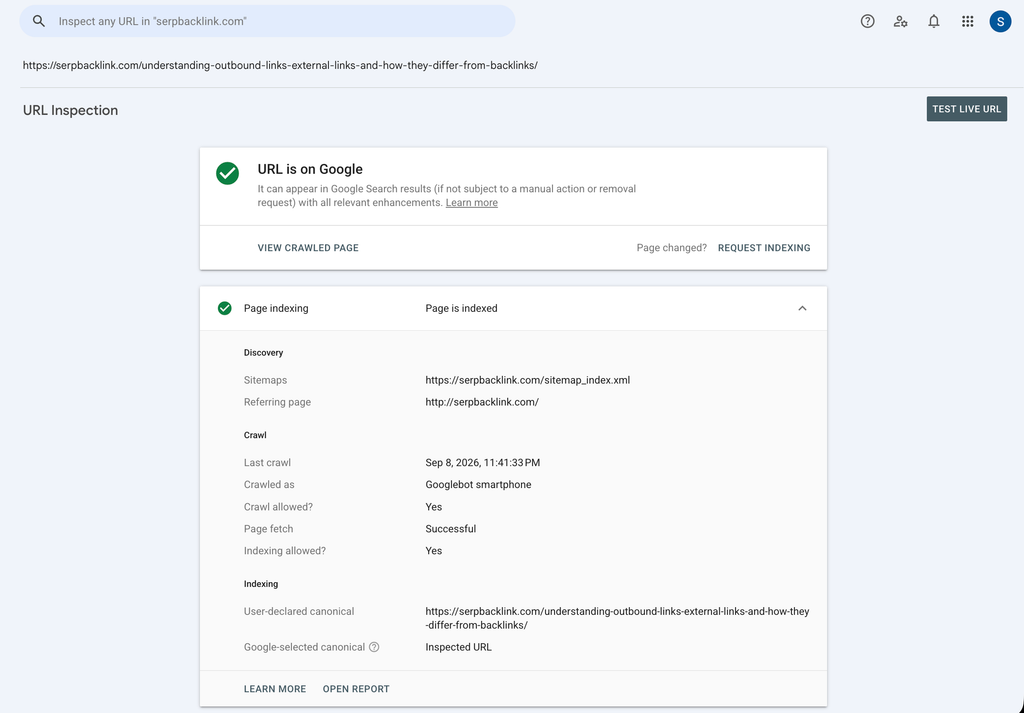
Here’s an example of what the URL Inspection results can look like in Google Search Console.
Why URL Inspection Matters for SEO
For anyone working with SEO, URL Inspection can save a lot of guesswork.
Imagine you publish an article on Wednesday, but by Friday it still isn’t appearing in Google Search. Instead of repeatedly searching the SERPs and wondering what’s happening, you can inspect the URL directly through Search Console.
The report can help you determine whether Google has already discovered and indexed the page or whether there is an issue that needs attention.
If you find a problem, fix the page first. Once the necessary changes have been made, you can use Request Indexing to ask Google to process the URL again.
Also Read: What You Need Before Adding Google Analytics
This doesn’t guarantee that the page will immediately appear in search results. However, it gives you a direct way to submit the updated URL for crawling and indexing.
For SEO teams managing a large number of pages, this kind of visibility is particularly useful. An important page can’t generate organic search traffic if Google hasn’t indexed it.
What Information Does the URL Inspection Tool Show?
The URL Inspection report contains several sections. Understanding what they mean makes it much easier to troubleshoot indexing problems.
1. URL Is on Google
The first thing you’ll usually want to know is whether Google has the URL in its index.
After entering a URL, the inspection report displays its indexing status. If Google has indexed the page, you may see the message “URL is on Google.”
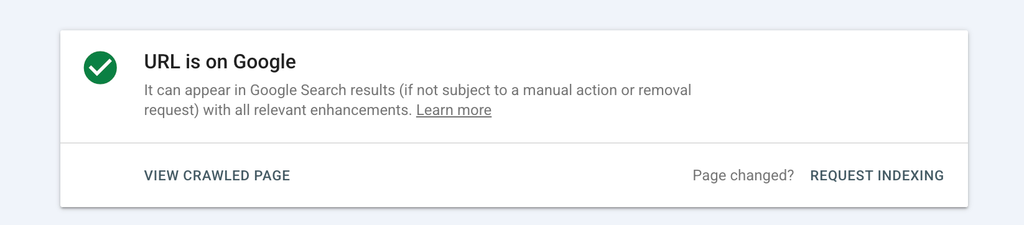
If Google hasn’t indexed the URL, the report can instead show “URL is not on Google.”
That distinction gives you a starting point for investigating what may be preventing the page from appearing in Google’s index.
2. Request Indexing
Found a page that isn’t indexed, or recently made important changes to an existing page?
The Request Indexing option allows you to submit the URL to Google for crawling and potential indexing.
It’s not necessary to repeatedly press the button. One request is enough. After submitting it, Google still decides when and whether the page will be crawled and indexed.
Also Read: 8 AI Detection Tools Recommended by Ahrefs
For that reason, it’s generally more useful to fix the underlying issue first rather than repeatedly requesting indexing for the same URL.
3. Test Live URL
The Test Live URL feature lets you check the current version of a page rather than relying only on information from Google’s indexed version.
This can be useful after making technical or content changes to a page. You can use the test to investigate whether Google can access the URL and to check the page after resolving a particular issue.
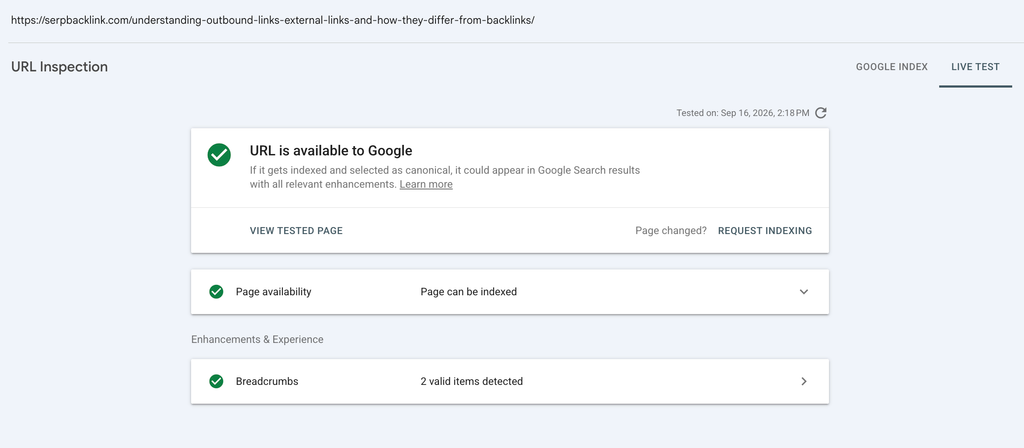
For website troubleshooting, this distinction can be important because the version Google has previously indexed may not always reflect the page as it exists right now.
4. Page Indexing
The Page Indexing section provides more detail about how Google discovered, crawled, and processed the URL.
When the relevant status indicates that the page has been successfully indexed, you can explore additional information about how Google handled the URL.
Depending on the page and report, you may find details such as:
- Sitemaps
- Referring page
- Last crawl
- User-declared canonical
- Other indexing-related information
This section is particularly useful when you’re trying to understand the path Google took to discover a page.
Rather than simply telling you whether a page exists in the index, it provides additional context that can help with SEO troubleshooting.
5. Enhancements and Experiences
URL Inspection can also display information related to enhancements and experiences associated with the page.
The exact reports can vary from one URL to another, so don’t expect every page to show exactly the same information.
For example, an inspected URL may contain information related to HTTPS or structured page elements such as breadcrumbs.
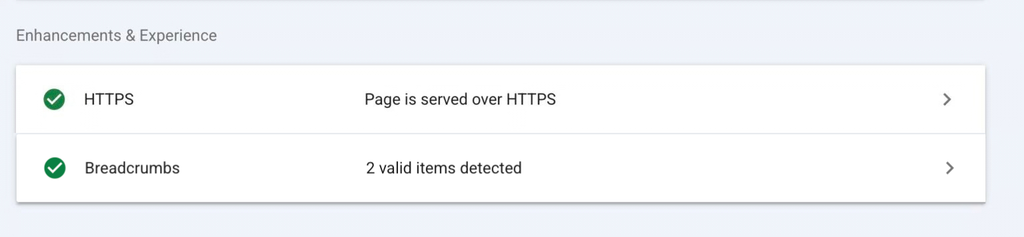
These reports give website owners another way to identify how Google is processing different aspects of a page.
How to Use the URL Inspection Tool
Using URL Inspection is relatively simple, even if you’re new to Google Search Console.
Step 1: Open Google Search Console
Log in to your Google Search Console account and select the website property you want to inspect.
Step 2: Find the URL Inspection Field
At the top of the Search Console interface, you’ll find the field used for URL inspection.
It looks similar to a regular search box.

Step 3: Enter the URL
Paste the complete URL of the page you want to check into the inspection field.
Search Console will then retrieve the available information about that URL.
Step 4: Review the Results
Look through the report to determine whether Google has indexed the URL and whether any issues have been reported.
If the page isn’t indexed, don’t immediately submit another indexing request. Check the information provided by Search Console first and address any problems you find.
Once you’ve made the necessary improvements, you can use Request Indexing.
Don’t Ignore Indexing After Publishing
Publishing an article isn’t necessarily the end of the SEO process.
If a page receives little or no organic traffic after several days, checking its indexing status is one of the practical troubleshooting steps you can take. The same applies when an important page suddenly disappears from Google or isn’t appearing as expected.
URL Inspection gives you a direct view of what Google knows about a particular URL. That makes it useful for identifying crawling and indexing problems before they become a bigger visibility issue.
For website owners, publishers, and SEO professionals, the takeaway is simple: don’t rely only on the SERPs to determine whether a page is indexed. When something looks unusual, open Google Search Console, inspect the URL, understand what Google is reporting, and fix the underlying problem before requesting another crawl.
That small habit can make managing a growing website much easier.
Reference:
Tagged with:
Google Search Console
An SEO Specialist & PR Strategist with over 6 years of experience in outreach guest posting, link building, and content marketing. Focused on building brand awareness through measurable digital marketing strategies. With a background in journalism and a wide professional network.